How to do the things that worry people.
Nine walkthroughs, written out in full. If you used 1.x, start with the first one: version 2.0 moved things. If you are coming from QuickBooks, start with the second.
If you already use an AI assistant, open usezhuque.com/ai, copy the file it links, and paste it in before you ask. It is the same instructions as this page in a form an assistant can follow, and it tells it to say “I don’t know, ask Brandon” rather than invent a menu that does not exist. We do not build an assistant into the program: that would mean your ledger leaving your computer, and it is not going to.
QuickBooks moves its menus between versions. If a path here does not match what is on your screen, write to UseZhuque@gmail.com and say which version you are on and the page gets fixed, not argued about.
Moving over from QuickBooks Desktop
About an hour, most of it waiting for QuickBooks to export.
You are not going to move ten years of transactions. Nobody does, and nobody should. What you move is a starting position: your accounts, your customers and vendors, and the balances as they stood on one chosen day. Everything before that day stays in QuickBooks, where you can still read it. Everything after it happens here.
Keep your QuickBooks file. Don’t cancel anything yet.
Finish this, work in ZhuQue for a month, and only then decide about the subscription. If the company file goes read-only in the meantime that is fine You have already taken what you need, and read-only is enough to look things up.
Before you start: pick the cutover date
Choose the last day of a month you have already closed and reconciled. The end of a quarter is better still; the end of your financial year is best of all. Do not pick today, and do not pick a date in the middle of a month. Everything in this guide hangs off that one date.
-
Export the trial balance as at your cutover date, twice
In QuickBooks: Reports → Accountant & Taxes → Trial Balance.
Set the date to your cutover date. Then take it away in both forms.
As a spreadsheet, with Excel → Create New Worksheet. Either Create new worksheet for an .xlsx or Export to a comma separated values (.csv) file for a .csv. ZhuQue reads both, so take whichever QuickBooks puts in front of you. This is the one you feed in. A PDF cannot be imported and never will be: a PDF is a picture of a table, and a guessed digit in a trial balance is exactly what this whole exercise exists to catch.
And as a PDF, or on paper. That is the one you lay beside ZhuQue’s own trial balance at the end and check by eye.
This is the only step in the guide you genuinely cannot skip. Bring only the PDF and you have the proof but nothing to load; bring only the CSV and you have the figures but nothing to check them against. -
Export your lists
If QuickBooks says you are in multi-user mode, first do
File → Switch to Single-user Mode.
Then File → Utilities → Export → Lists to IIF Files. Some versions label that last item just IIF Files. Tick Chart of Accounts, Customer List and Vendor List, click OK, and save the file somewhere you will find it again. Your Desktop is fine.
Tick Item List as well if you sell stock. -
Export what is still owed, in both directions
You need a list of the invoices customers had not yet paid on the cutover date, and
the bills you had not yet paid. In QuickBooks these are the
A/R Aging Detail and A/P Aging Detail reports, under
Reports → Customers & Receivables and
Reports → Vendors & Payables. Set each one to
the same cutover date as the trial balance and export each as a CSV,
the same way.
The dates matter more than anything else here. An aging run even a day later than the trial balance counts invoices the trial balance was written before, and the two can then never agree.
ZhuQue reads these and creates every open invoice and unpaid bill for you, each at its own date, so that statements and aging work from day one. You do not type them in. - Download your bank and card history This is optional and it does not come from QuickBooks. Sign in to your bank, pick the account, and download the period you want as CSV or OFX. Most banks will give you 12 to 24 months.
- Make the new company in ZhuQue Open ZhuQue Books and create a new company. Give it the business name and choose the folder it lives in: a folder you can find in Explorer and that your backup already covers. Set the financial year end to match the one in QuickBooks. Do this and nothing else: the import needs books nobody has posted to yet, and the button disappears once anything has been entered.
- Open Accounts, and press “From QuickBooks” It is in the top right of the Accounts screen. If it is not there, something has already been posted to these books. Start a fresh company rather than trying to work around it.
-
Set the cutover date before you choose any files
The box starts on today, and today is almost never right. Put in the date your
trial balance is as at, the one you agreed at the start.
This is the single commonest way the import goes wrong. If the trial balance is as at 31 October and the box says today, every figure is compared against the wrong day and the result is a difference nobody can explain. -
Choose the files
There is a row for each one. Only Trial Balance is marked
needed; the rest fill in detail.
A/R Aging Detail and A/P Aging Detail bring the unpaid invoices and bills. Chart of Accounts, Customer list and Vendor list each have a row. Or the .IIF file at the bottom stands in for all three at once, which is why it is worth exporting even though it is optional.
You do not type any of this in. That is the point of the step. -
Press “Check these files” and read what it says
Nothing has touched the ledger yet. It builds a plan, shows you the accounts,
customers, invoices and bills it would create, and tells you whether the figures
agree.
Anything in red stops the import: a missing trial balance, or one that does not balance in QuickBooks either. Fix those and come back.
Anything in amber does not. Differences, invoices dated after the cutover, documents QuickBooks recorded as due before they were issued: these are reported, handled, and let through. A real set of books rarely reconciles to the cent on the first try, and an import that waits for perfect is an import nobody finishes. -
Import
The opening journal, every open invoice and every unpaid bill are posted for you,
balanced, in one go. Leave Close the books through… ticked so
nothing can later be dated back into the period QuickBooks already reported on.
If what it produced does not match the trial balance it was given, the whole thing is rolled back and nothing is left behind. You can press Check, read the plan, close the window, and have changed nothing. -
Prove it, and clear the difference
Run ZhuQue’s trial balance at the cutover date and put it beside the
QuickBooks one from step 1. They should agree line for line.
If the import found a difference it could not explain, it will have put it in an account called Opening difference (needs review), so that the books balance and can be worked in straight away. That account is a question, not an answer: it should be empty before anyone signs off a set of accounts.
The usual culprits, in order: the two reports run as at different dates; unapplied payments and credit notes sitting in Accounts Receivable that are not unpaid invoices; and a difference that is a multiple of nine, which is almost always two digits swapped around.
What does not come across, and why
Said plainly so that you find out here instead of three weeks in.
- Transaction history before the cutover date. It stays in QuickBooks. You are moving a starting position, not a decade.
- Payroll history. ZhuQue does not do payroll tax, so it has nowhere honest to put it. Keep the QuickBooks reports and your provider’s records.
- Memorised and recurring transactions. Set these up again; there are usually only a handful and it takes minutes.
- Attachments and custom report layouts. Attachments stay in the QuickBooks attachment folder, which you can copy wholesale into your new company folder.
- Reconciliation history. Your bank reconciles from the cutover date onwards. Everything before it was already reconciled in QuickBooks.
Send us the export first and we will tell you what happens to it.
Email the IIF file from step 2 to UseZhuque@gmail.com before you buy anything. You get back a plain list of what comes across, what doesn’t, and anything in your chart that is going to need a decision. It costs you nothing and it is a better answer than this page can give, because it is about your file.
Starting from nothing
20 minutes.
No QuickBooks file, no accountant’s spreadsheet, just a business and a bank account. This is the short road.
-
Make the company
On the screen ZhuQue opens on, press Create a company.
Name, financial year end, and the folder it lives in. Put that folder somewhere your backup already reaches. A Dropbox or OneDrive folder is fine, and so is a plain folder on the disk if you take the USB backup seriously. -
Take the starter chart of accounts and cut it down
Accounting → Chart of accounts in the sidebar. Every account you have is
listed there, and New account at the top right adds one.
It is deliberately short. Add accounts when you first need one, not in advance. A chart with forty accounts you never post to is harder to read than one with twelve. -
Set your opening bank balance
Journal → New entry, or Ctrl+J from anywhere.
Pick a start date, the first day of a month, and enter the balance your bank statement showed at the close of the day before. That one figure is posted against Opening Balance Equity, which is the account that exists purely to hold the question “where did this money come from” until your accountant answers it. -
Enter anything already owed to you or by you
Unpaid invoices you have sent go in under Invoices → New
invoice; bills you have received and not paid under
Bills → Enter a bill.
Original dates, one each. Dating them all today would make every one of them look current, and your aging would be wrong from the first morning. -
Send your first invoice
Invoices → New invoice, or Ctrl+I.
It writes a PDF into the Invoices folder as you save it and posts the entry at the same moment. Click your company’s name at the top of the sidebar, choose Open the company folder, and look at it. It is worth seeing once that the file is simply there. -
Turn on backups before you need them
Connections → Backup folder, in the sidebar under Overview.
Local, a synced folder, and the encrypted cloud copy. When it asks you to confirm you have written the passphrase down somewhere other than this computer, actually do it. There is no way for us to recover it, by design.
Bringing in bank and card history
15 minutes.
Imported lines never post straight to the ledger. They land in a review queue, and you decide what each one is. That is the whole design: the file your bank gives you is evidence, not bookkeeping.
- Get the file from your bank Sign in to your bank and download the period you want. CSV, Excel or OFX. OFX is best if they offer it, because it carries a unique id for every line and nothing has to be guessed.
-
Tell ZhuQue which columns are which, once
Bank and card → Import a statement, and choose the file.
CSV layouts differ by bank. You map date, description and amount the first time and it remembers the layout for that account. -
Work the queue
It is the Bank and card screen itself: imported lines sit there
waiting, and nothing has touched the ledger until you say what a line is.
Each line is matched against what is already in your books: an unpaid invoice, a bill, a receipt from your phone. Exact means the amount agreed to the cent. Everything else is offered as a suggestion for you to accept or ignore. - Import the same file again whenever you like Lines already taken in are recognised and skipped. Overlapping date ranges do not produce duplicates, so you never have to be careful about which statement you grabbed.
-
Reconcile
Reconcile → Start a reconciliation. Pick the account,
then the closing balance and date from the statement.
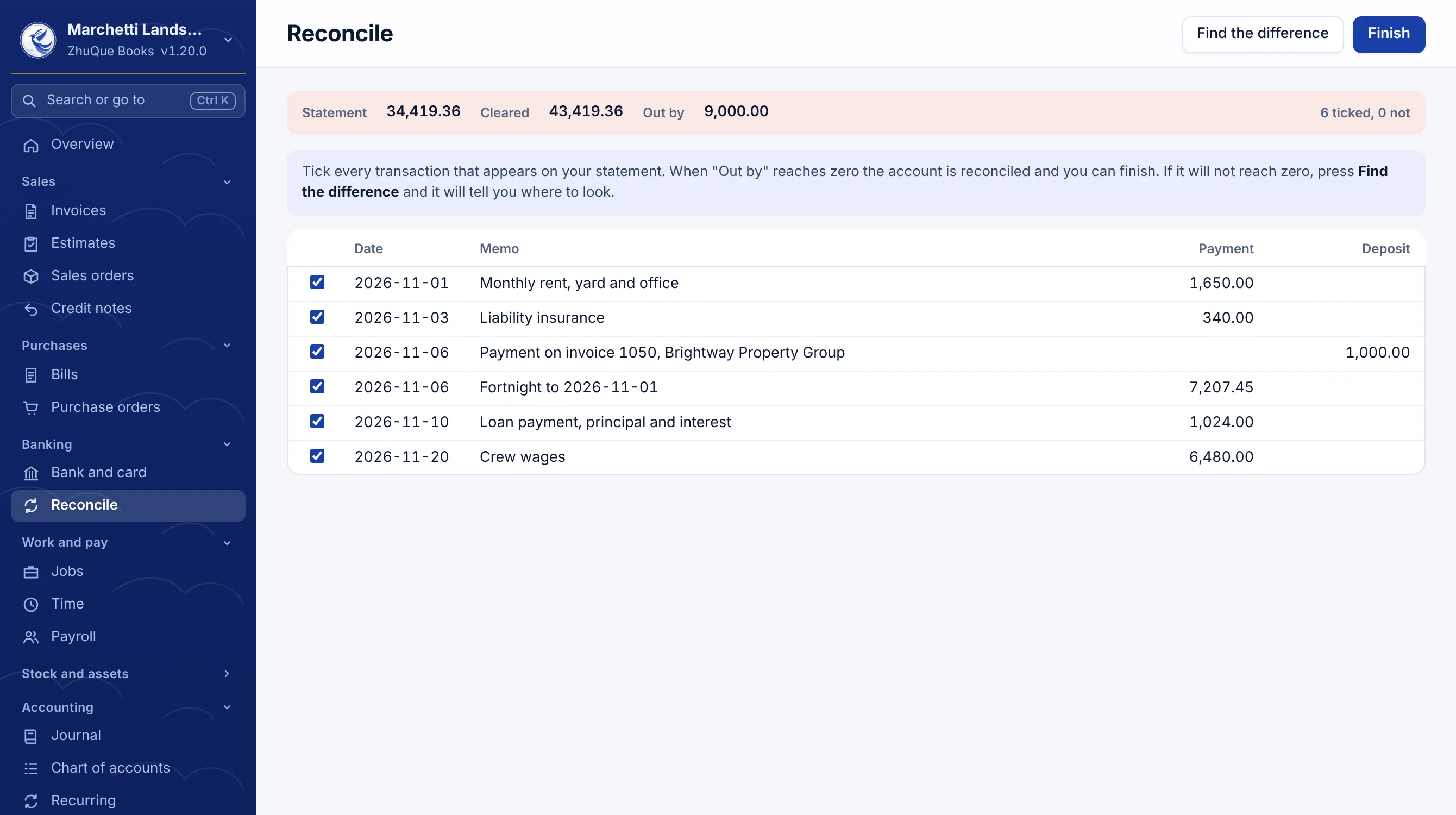
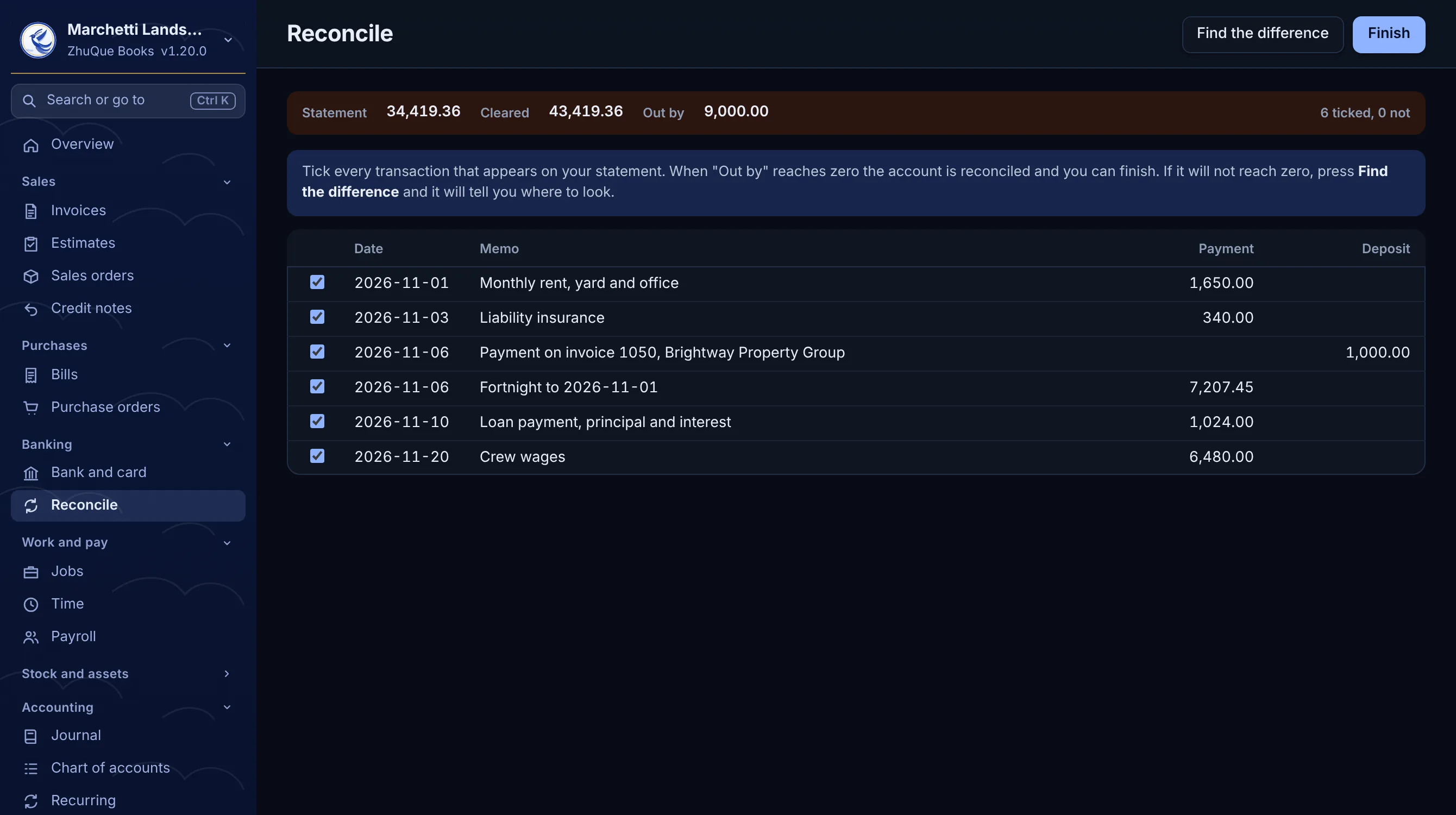
Tick against the statement. If it does not come out, the solver names the likely cause : transposed digits, an unticked item, a sign the wrong way round, rather than leaving you to hunt.
Getting your books to your accountant
5 minutes.
Three ways to get your books to your accountant, in order of how much they get.
- Send the folder
- Click your company’s name at the top of the sidebar and choose Open the company folder. Copy it to a USB stick or zip it and email it. They get everything, and they are working on your only copy of the truth, so this is for an accountant you would hand the keys to anyway.
- Send an accountant’s copy
- Close the books → Accountant’s copy. A copy they can post adjustments in while you carry on, whose entries come back to you as a change file. Right for a year end. Its own guide is below.
- Export the workpapers
- Reports → Export workpapers. A real .xlsx with live formulas, not a flat dump of numbers. Right for an accountant who works in Excel and wants to see how a figure was arrived at.
- Send a share link
- Connections → Read-only link. A read-only snapshot of the reports you choose, at a web address. Right for “can you send me the P&L and balance sheet” on a Tuesday afternoon.
-
Choose the reports and the dates
Open Connections in the sidebar and press Set up on
Read-only link. The same thing is under your company’s name at the
top of the sidebar, as Share with your accountant.
Trial balance, profit and loss, balance sheet, a period. Only what you tick goes. - Set an expiry, and a passcode if you want one The link stops working on the date you pick. You can also revoke it earlier, at any time, from the same screen.
-
Send the link
The figures are encrypted on your computer before they are uploaded, and the key rides
in the part of the web address that browsers never send to a server. So the link opens
your reports for whoever has it, and the machine storing it cannot read a thing.
That is also the catch, and it is worth knowing: anyone with the whole link can open it. Send it the way you would send a password, set a short expiry, and add a passcode if the figures are sensitive. - See when it was opened The share screen shows whether and when it has been looked at, which saves the “did you get it?” email.
Finding your way around 2.0
5 minutes. For anybody who used 1.x and opened 2.0 to find things moved.
Nothing was taken away. Nineteen screens are now in six groups, the things that are about the company rather than a screen moved into one menu, and there is a search box for everything.
- The sidebar
- Overview and Connections at the top, then Sales, Purchases, Banking, Work and pay, Stock and assets, and Accounting. Click a group’s name to fold it or open it, and it stays that way. On a short window the groups you use least fold themselves, so every group is always on screen.
- Search, Ctrl+K
- The box at the top of the sidebar, or Ctrl+K from anywhere. Type a screen (“reports”), something to do (“new bill”), or what you are looking for: an invoice number, a customer’s name, a bill reference, an account. Arrow keys and Enter work.
- The company menu
- Click your company’s name at the top of the sidebar. Back up now, Open the company folder, Share with your accountant, Other computers in the office, Connect an AI, Keys and webhooks, Licence, and the System / Light / Dark switch.
- Overview
- Cash over the last twelve months, what you are owed and what you owe with a bar showing how late, this month’s money in and out, and Needs you: late invoices, bills due this week, drafts, backups and missing receipts. Click a line and it opens the thing it is about.
- Connections
- Everything ZhuQue can link to, in one place: your bank, card payouts, card payments on invoices, an AI assistant, keys for other software, your accountant, other computers, backups, receipts from your phone and email. Each says whether it is set up, and its button opens the same set-up it always had.
Where things went
| In 1.x | In 2.0 |
|---|---|
| Open folder | Company menu → Open the company folder |
| Back up | Company menu → Back up now, or Connections → Backup folder |
| Share | Company menu → Share with your accountant, or Connections → Read-only link |
| Licence | Company menu → Licence |
| The theme switch | Company menu, at the bottom |
| Accounts | Accounting → Chart of accounts |
| Banking | Banking → Bank and card |
| Credits | Sales → Credit notes |
| Orders | Purchases → Purchase orders |
| Assets | Stock and assets → Fixed assets |
| Close | Accounting → Close the books |
Tracking time, billing it and paying it
10 minutes.
The same hours do two jobs: they go onto a customer’s invoice, and they go onto the pay run. Each hour can be billed once and paid once, and nothing on the Time screen posts to the books by itself.
-
Log the hours
Work and pay → Time → Log time.
Who, the date, the hours, and the job if the work was for one. A job brings its customer with it, so you do not pick both. Untick Billable for time you will not charge for. Or press Start the clock and stop it when you are done. - Check the week The Time screen shows the week a day at a time, and a list of anybody with a weekday missing this month. A day off and a forgotten timesheet look the same to a computer, so it asks rather than guesses.
-
Bill it
Time → Unbilled time, then Invoice it
beside the customer.
Choose how it reads (one line per service and job, one per day, or one per entry), the last day to include, and the issue date, then Make the draft. It is a draft invoice like any other: open it, check it, and press Issue. If you later void that invoice, the hours go back to unbilled. -
Pay it
Work and pay → Payroll → New pay run, for the period.
Under Add somebody to this run, pick the person. If they have hours on their timesheet for the period, ZhuQue says how many, and Add their timesheet hours puts them on the run with overtime worked out week by week. Hours already on a run are not offered again; remove that line and they are free. - Post the run Confirm pay and record it. That is the moment the hours count as paid. Until then the run is a draft and can be changed or thrown away.
Giving your accountant a copy to work in
10 minutes on your side, plus however long they take.
For a year end. Your accountant adjusts last year in their copy while you carry on with this one in yours. A dividing date splits the timeline: your books are closed up to it, and their copy refuses anything after it, so the two cannot collide. What comes back is a set of journal entries, which is the one thing that can be merged honestly.
Your accountant does not need to buy ZhuQue to do this. On a copy of ZhuQue whose trial has run out, a client’s copy still opens and works, as long as its dividing date has passed.
-
Make the copy
Accounting → Close the books → Accountant’s copy.
Choose the dividing date, usually your year end, add a note if you like, and press Make the copy. ZhuQue asks where to put it and writes a single file, named something like accountants-copy-2026-12-31.zhuque. - Send them the file Email it, or put it somewhere you both reach. Carry on working: anything dated after the dividing date is yours.
- They open it In ZhuQue they choose Open a company and pick the folder they saved the file in. ZhuQue finds the copy and opens it, and leaves the file you sent exactly as it arrived.
- They post their adjustments, and send them back In the Journal, dated on or before the dividing date. When they are done, Close the books → Accountant’s copy → Write the change file, and they send you that file.
-
Bring their entries in
Close the books → Accountant’s copy on your side.
Open the change file in Notepad, copy all of it, paste it into the box, and press
Check it. It says how many entries there are and what they do to that
period’s profit before anything changes. Then Bring it in.
A change file can only go into the books it was cut from, and only once. If the copy is no longer wanted, Take it back instead.
Getting paid by card
10 minutes, once.
A Pay button on the invoices you send, paid on a page Stripe hosts, into your own Stripe account at whatever rate you have with them. ZhuQue is not in the middle and takes no cut. You need a Stripe account.
-
Make a key in Stripe
In Stripe, Developers → API keys → Create restricted
key. Call it ZhuQue Books.
Set Write on Payment links, Prices and Products. Set Read on Checkout sessions, Payment intents, Charges and Balance transactions. Leave everything else as None. A key beginning sk_ is refused: it can issue refunds and move payouts, and nothing here needs either. - Give it to ZhuQue Connections → Pay this invoice by card → Set up, paste the key, and press Check it and save. ZhuQue proves the key works with Stripe before keeping it. The key stays on this computer, locked by Windows, and is never sent to us.
- Send an invoice with a Pay button Issue the invoice as usual. Email it from ZhuQue and the Pay button goes in by itself. To send the link some other way, open the invoice and press Pay link. Each link takes one payment and then stops working, so a forwarded email cannot pay the same invoice twice.
- Record the payment Bank and card → Money in → Check Stripe. Each paid invoice is listed with what Stripe kept. Record it, then Post it: the invoice is marked paid and Stripe’s fee goes to bank charges. Nothing posts until you press it.
Connecting the rest of your software
5 minutes each. Everything here starts from Connections in the sidebar.
Square, PayPal or Shopify Payments
What each one paid you comes in with its fees split out, into an account of its own, and leaves it when the payout reaches your bank. What is left in that account is what the processor is still holding, so it can be checked against them.
- Open the card feeds Connections → Card payouts → Set up, then the button for your processor.
- Square Press Open Square and sign in on Square's own page. ZhuQue asks to read your payments, payouts and locations, and nothing else. Square then shows you a code on usezhuque.com: copy it into ZhuQue and press Connect. Payments arrive a day after they happen, once Square has worked out its fee. Cash you record in Square is left out, because that money is in your till.
- PayPal PayPal has no read-only key, so make one that can do almost nothing. On developer.paypal.com, switch to Live, create an app called ZhuQue Books, tick Transaction search and untick everything else, especially Payouts. Paste the client ID and secret into ZhuQue.
- Shopify Payments In your Shopify admin, Settings → Apps and sales channels → Develop apps, create an app with one permission, read_shopify_payments_payouts, install it, and copy the token that starts shpat_. If your store is paid through PayPal or Stripe instead, connect those. WooCommerce stores are the same: connect the Stripe, PayPal or Square account the store is paid into.
- Check now Press Check now beside the processor. New rows wait in Bank and card for you to look at; nothing posts by itself.
Your payroll provider
Gusto, ADP, Paychex, QuickBooks Payroll and Paylocity all export a payroll journal (ADP calls it the general ledger report): one line per account, with debits and credits. That is the file to export, not the payroll register.
- Export the journal for the pay runs you want, as CSV or Excel.
- Bring it in from Payroll → From your payroll provider. Each of your provider's lines is shown with the account ZhuQue thinks it means: wages and the employer's tax as expenses, what was withheld as a liability, net pay from the bank. Change any that are wrong. ZhuQue remembers your answers for the next file.
- Post. Each pay date becomes one journal entry. A file brought in twice posts nothing the second time, and a pay run whose lines do not balance is refused, with the difference.
Apps that export to QuickBooks Desktop
Jobber, Housecall Pro, time clocks, tills and shop add-ons that can write a QuickBooks IIF file can feed ZhuQue too.
- Export the IIF file from the other program, the way you would for QuickBooks.
- Bring it in from Connections → Files from other programs. Invoices are issued, bills entered, payments applied to the customer's open invoices, and checks and deposits posted. New customers and vendors are added.
- Answer the accounts it asks about. If the file says "Lawn Revenue" and your chart says 4100 Service Income, pick it once. Anything ZhuQue will not guess at, like a credit memo, is listed with the reason so you can enter it on its own screen.
Your tax preparer
Reports → For tax software saves the year's trial balance as a plain file that UltraTax CS, Lacerte, Drake Tax and ProSeries can import. Income and expenses are the year's own, before it is closed, and the balance sheet is at 31 December. Send it to your preparer; their program asks once which tax line each account goes on.